
Download MercuryMover – Keyboard Window Resizer for Mac
Overview
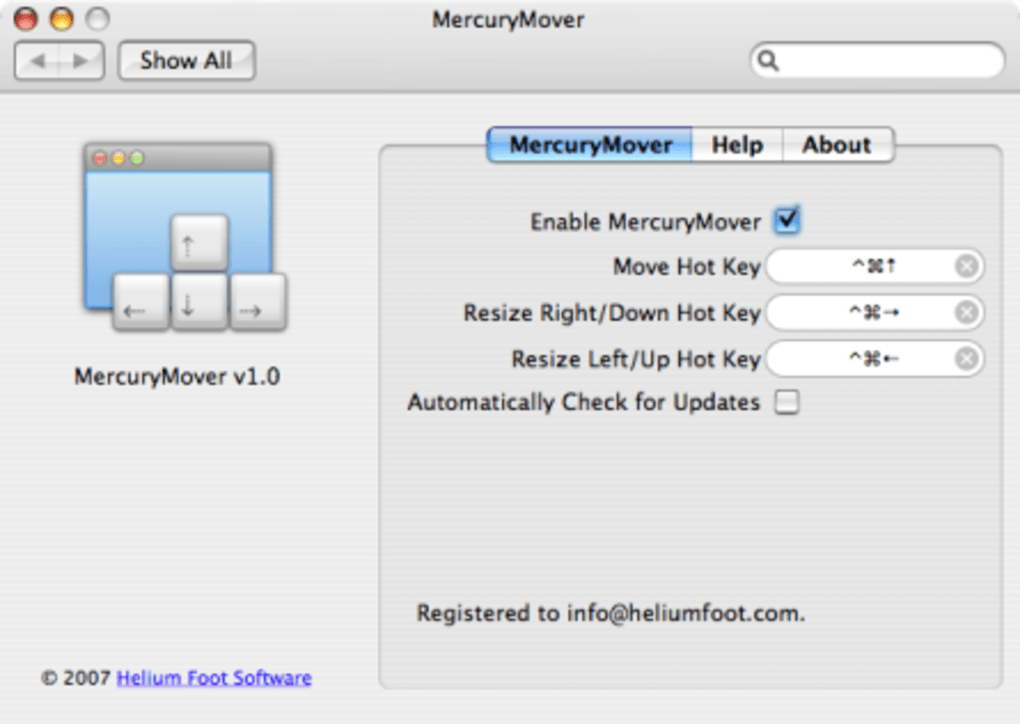
MercuryMover is a lightweight Mac prefpane designed for power users who prefer to keep their hands on the keyboard rather than reaching for the mouse. In a world where multitasking is the norm, the ability to instantly move or resize any window with a single keystroke can dramatically speed up your workflow. The tool integrates directly into macOS System Preferences, allowing you to define custom hotkeys for common window‑management actions such as expanding a window to half‑screen, centering it, or nudging it pixel by pixel.
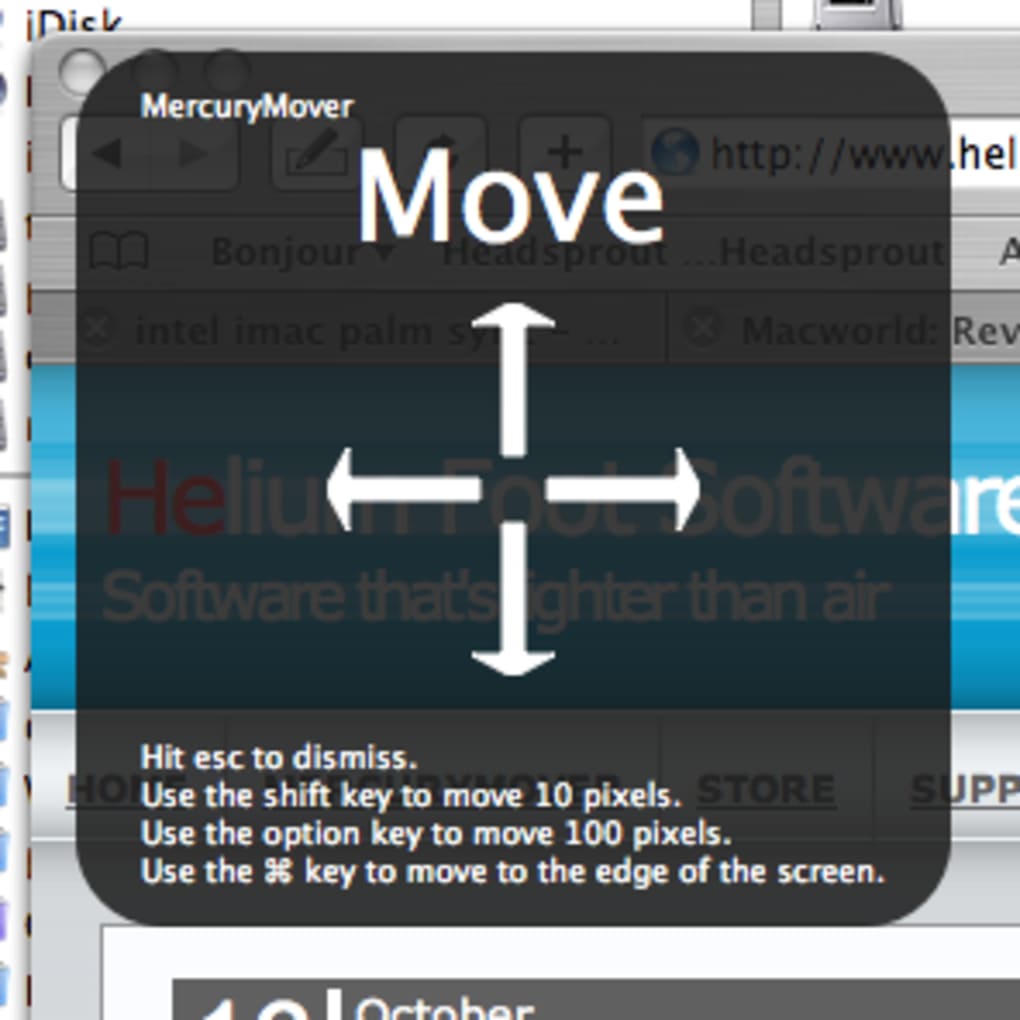
While the core idea is simple—replace mouse‑dragging with keyboard shortcuts—MercuryMover adds a polished head‑up display (HUD) that visually confirms the action, reducing the learning curve for new users. Although the application does not come with an extensive tutorial, its intuitive layout quickly becomes second nature once you’ve mapped your preferred shortcuts. Whether you’re a developer, writer, designer, or anyone who spends long hours juggling multiple applications, MercuryMover offers a secure, free‑to‑try solution that can be purchased for a modest price after the trial period.
The recent “Changes Shortcuts” update improves usability, and the enhanced graphics in the HUD make it easier to see exactly which window is being manipulated. In short, MercuryMover fills a niche that many macOS users didn’t even realize they needed, turning window management into a seamless keyboard‑only experience.
Key Features & Capabilities
- Customizable Hotkeys: Assign any key combination to move, resize, or center windows, with support for modifier keys (⌘, ⌥, ⇧, ⌃).
- Pixel‑Perfect Control: Nudge windows by single‑pixel increments for precise layout adjustments.
- Pre‑defined Layouts: One‑click shortcuts for popular arrangements like left/right half, top/bottom half, and full‑screen.
- Head‑up Display (HUD): Real‑time visual feedback that shows the current window dimensions and position after each action.
- Multi‑Monitor Support: Seamlessly move windows across connected displays without losing your hotkey mappings.
- Persistent Settings: All shortcut configurations are saved in the System Preferences pane, surviving macOS updates and reboots.
- Lightweight & Secure: As a native prefpane, MercuryMover runs with minimal CPU overhead and does not require additional background services.
- Regular Updates: The developer releases frequent patches that improve stability, add new shortcut options, and refine the HUD graphics.
Installation & Usage Instructions
Installing MercuryMover is straightforward and mirrors the typical macOS application setup. Follow these steps to get the tool up and running in under five minutes:
- Download the Installer: Visit the official MercuryMover website and click the Download for macOS button. The file will be a
.dmgpackage, sized under 5 MB. - Mount the Disk Image: Double‑click the downloaded
.dmg. A new window appears containing the MercuryMover.prefPane file. - Install the Prefpane: Drag the MercuryMover.prefPane icon into the
System Preferencesshortcut shown at the bottom of the window. macOS may prompt you to authenticate; enter your administrator password. - Open System Preferences: Once installed, you’ll see a new “MercuryMover” icon. Click it to launch the configuration panel.
- Define Your Hotkeys: In the panel, you’ll find sections for Move, Resize, and Layout. Click the “Add Shortcut” button next to each action, then press the desired key combination. MercuryMover will automatically detect conflicts and warn you if a shortcut is already in use.
- Test the Shortcuts: With the configuration saved, open any window (e.g., Finder, Safari) and press the hotkey you assigned. The HUD will flash, indicating the new size or position.
- Fine‑Tune Settings: Use the “HUD Opacity” slider to adjust how prominent the visual feedback appears, and toggle “Snap to Grid” if you prefer windows to align to a predefined layout.
- Upgrade or Purchase: After the 14‑day trial, you’ll receive a prompt to purchase the full license. Buying unlocks unlimited shortcut creation and priority support.
For power users, MercuryMover also supports importing/exporting shortcut profiles as .json files, making it easy to share your configuration across multiple Macs. The tool respects macOS’s security model, requiring no additional permissions beyond the initial System Preferences access. If you ever need to reset the application, simply delete the MercuryMover.prefPane from /Library/PreferencePanes and reinstall using the steps above.
Compatibility, Pros & Cons
MercuryMover is built exclusively for macOS 10.13 (High Sierra) and later. It runs natively on Intel‑based Macs as well as Apple Silicon (M1/M2) devices, thanks to universal binary support. The prefpane integrates with System Preferences, ensuring full compatibility with macOS security updates and future releases. Users on older macOS versions may experience limited functionality or may need to run the application in compatibility mode.
Pros
- Instant window management without leaving the keyboard.
- Highly customizable hotkeys cater to personal workflow preferences.
- Lightweight footprint; negligible impact on CPU and memory.
- Clear HUD that confirms actions, reducing guesswork.
- Supports multi‑monitor setups and Retina displays.
- One‑time purchase model after trial – no subscription fees.
Cons
- Lacks an in‑app tutorial; new users must rely on online guides.
- Only focuses on moving/resizing – no window‑tiling or snapping features beyond basic layouts.
- Configuration UI can feel dense for beginners.
- No native Windows or Linux version (Mac‑only tool).
Overall Rating: 4.5/5 – MercuryMover delivers a smooth, keyboard‑centric window management experience that’s hard to beat for macOS power users.
Frequently Asked Questions
Can I use MercuryMover on a MacBook with Touch Bar?
Yes. MercuryMover works on all MacBook models, including those with a Touch Bar. The hotkeys operate independently of the Touch Bar, so you can assign shortcuts that do not conflict with the bar’s system functions.
Is there a way to reset all shortcuts to default?
Within the MercuryMover preferences pane, click the “Reset to Defaults” button located at the bottom of the window. This will clear all custom shortcuts and restore the original preset layout.
Does MercuryMover interfere with other window‑management apps like BetterTouchTool?
MercuryMover runs as a separate prefpane and does not modify system APIs, so it can coexist with apps such as BetterTouchTool. However, if you assign identical hotkeys in both programs, the first one loaded will capture the keystroke. It’s recommended to keep shortcut sets distinct to avoid conflicts.
What is the price after the trial period?
A full license costs $9.99 USD (one‑time payment). The purchase unlocks unlimited shortcut creation, priority updates, and premium support.
Can I export my shortcut configuration?
Yes. MercuryMover includes an “Export Settings” button that saves all hotkey mappings to a JSON file. You can later import this file on another Mac to replicate the exact setup.
Conclusion & Call to Action
If you spend a significant portion of your day juggling multiple applications, MercuryMover is a pragmatic addition to your macOS toolbox. By eliminating the need for mouse‑driven resizing, it streamlines your workflow and reduces repetitive strain. The modest price point, combined with a feature‑rich free trial, makes it a low‑risk investment for anyone who values speed and keyboard efficiency. Ready to boost your productivity? Download MercuryMover today, test the 14‑day trial, and experience a smoother, mouse‑free window management routine.







